
How to Blur Everyone Except You in a Video (Selective Face Blur)
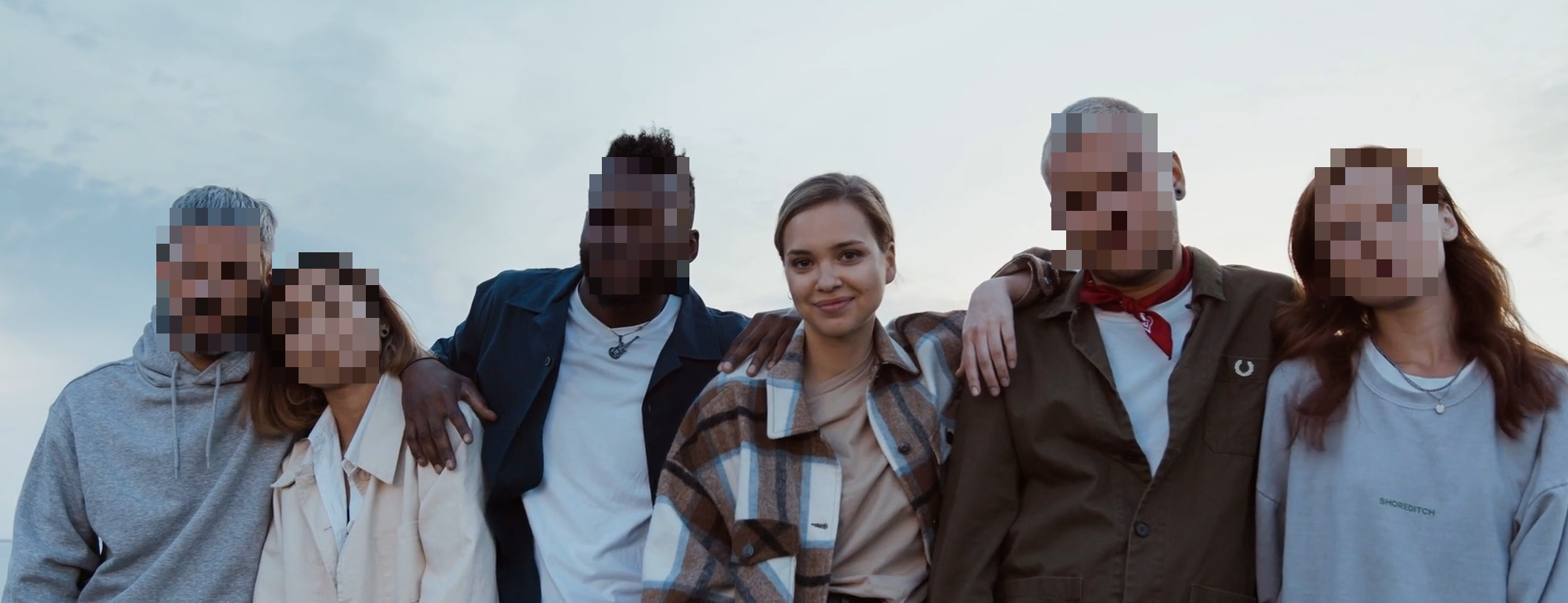
Keep yourself visible and blur everyone else
Run the selective workflow, review identities, and export a clean version with optional original audio.
Best setup for this workflow
Selective blur is the workflow you need when one person should stay visible while everyone else is anonymized. Typical cases: creator videos, home footage, training clips, and interview content where the speaker stays clear but bystanders do not.
What selective blur does
Instead of blurring all faces, selective mode analyzes the clip first, groups detections into identities, and lets you decide who to keep and who to blur.
Use the tool here: /en/tools/blur-faces-videos/
Step-by-step workflow
-
Upload your video.
-
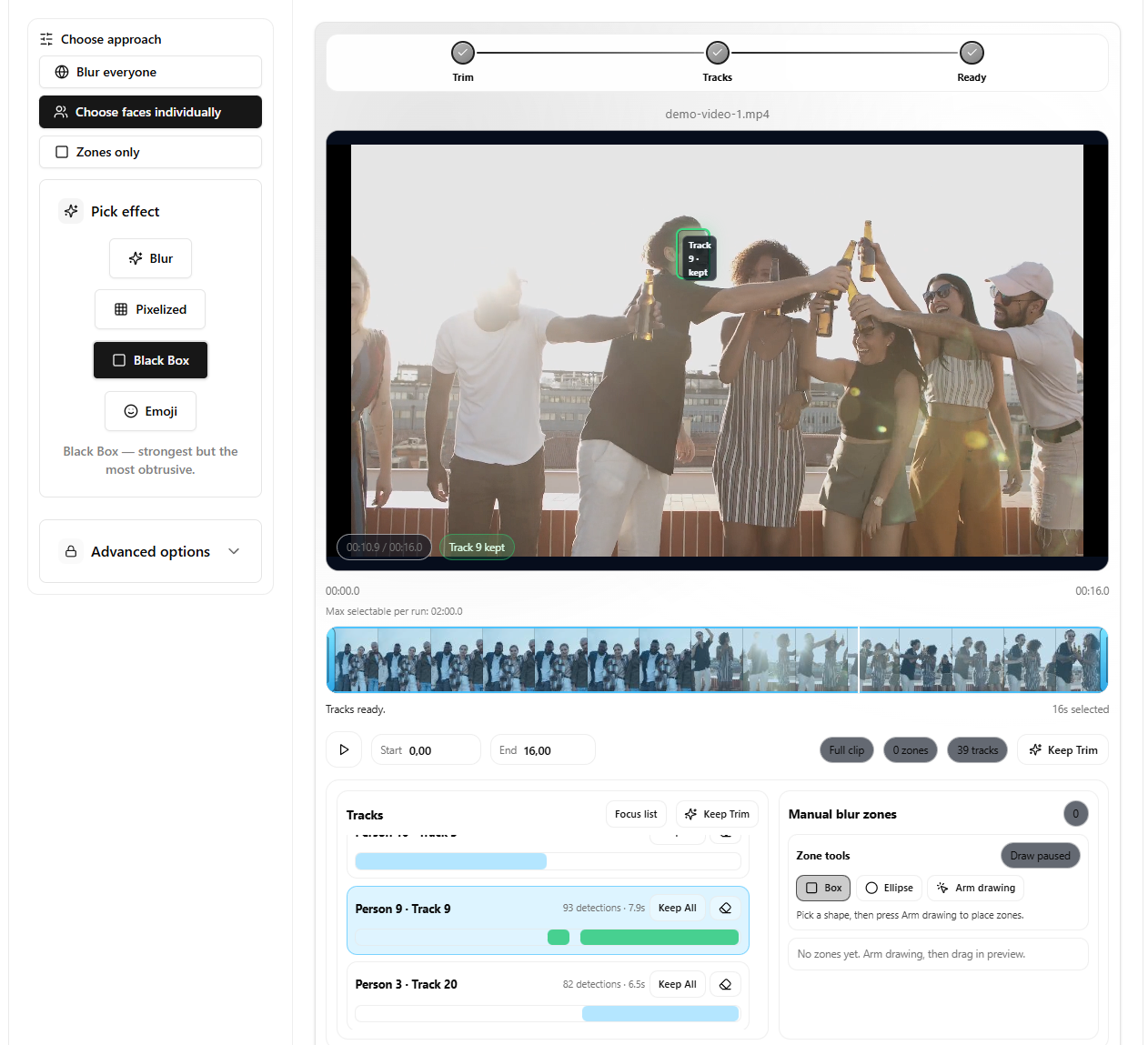
Choose Choose faces individually.
-
Set trim range if you only need part of the clip.
-
Click Analyze selected clip.
-
Review detected identities and keep the person who should remain visible.
-
Choose your anonymization effect for everyone else.
-
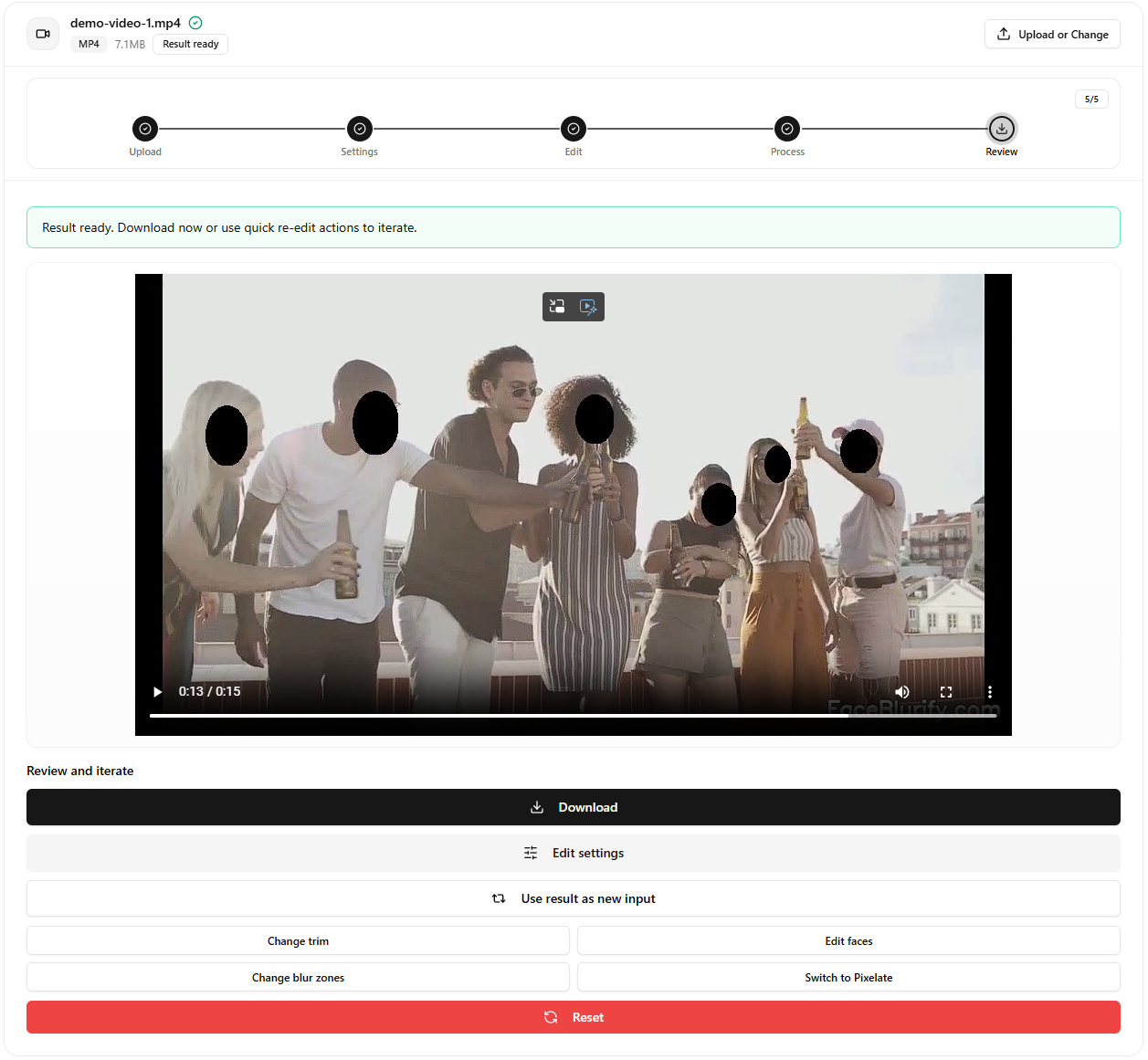
Apply and review the final output.
Best settings to start with
- Effect: Pixelized for strong privacy.
- Keep audio: enabled if dialogue matters.
- Trim first: analyze only the range you need for faster runs.
When selective mode is better than blur-all
Choose selective mode when:
- You need one presenter visible.
- You must keep known participants while hiding bystanders.
- You want fine control per person or per segment.
Common pitfalls
- Running without trim on long clips when only a short segment is needed.
- Using too soft an effect for public social distribution.
- Skipping final review after output compression.
Related guides
- How identity gallery works
- Keep original audio when blurring video
- Detection missed someone? quick fixes
FAQ
Can I keep more than one person visible?
Yes. Selective mode supports multiple keep decisions.
Can I blur only a time range?
Yes. Trim first, then analyze the selected segment.
Is selective mode slower than blur-all?
Usually yes, because it runs an analysis stage first.
Can I still use manual zones?
Yes. Zones are useful for non-face elements like badges, screens, logos, or reflections. For readable license plates, the dedicated plate tool is usually the better choice.