
How to Blur Faces in Video Without Removing Audio
Keep original audio while faces stay anonymized
Open the video tool for an audio-safe privacy pass, then review the export before publishing.
Best setup for this workflow
Most real-world clips need both privacy and context. You want faces anonymized, but you still need speech, ambient sound, or narration to remain intact.
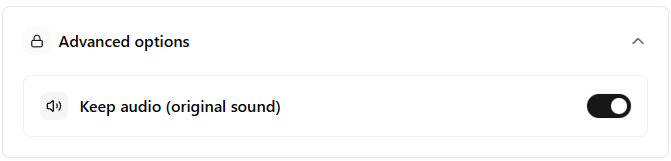
FaceBlurify supports this with a dedicated Keep audio option.
Use this workflow when the video contains useful sound, such as interviews, lessons, event ambience, reactions, or narration. If spoken names, addresses, or private details are audible, blur alone is not enough; you should review or edit the audio too.
Quick workflow
- Upload video in face or full-body mode.
- Open Advanced options.
- Enable Keep audio (original sound).
- Process and review lip-sync plus clarity.
- Export and verify playback across devices.
Choose the right tool first
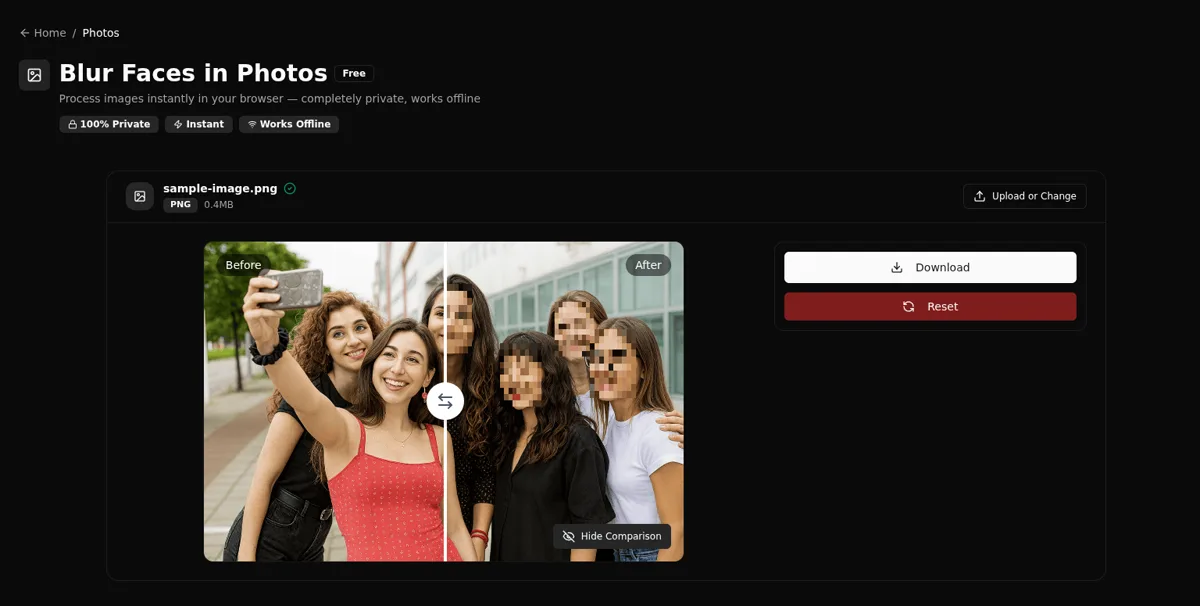
- Face blur tool: /en/tools/blur-faces-videos/
- Full-body tool (wide scenes, CCTV): /en/tools/blur-fullbody-videos/
When you should keep original audio
- Interviews and creator videos.
- Training materials with spoken instructions.
- Event recaps where narration matters.
When you may want additional audio edits
- Names or identifiers are spoken.
- Sensitive location details are audible.
- Policy requires audio redaction too.
Privacy checklist for audio (common miss)
Keeping audio preserves context, but it can also preserve identifiers. Do a quick listen for:
- Full names, addresses, phone numbers, license plates read aloud.
- Login prompts, access codes, or internal system names.
- Children’s names (if policy requires extra protection).
Quality checklist
- Audio track present in final export.
- No major sync drift.
- Voice intelligibility preserved.
- Privacy policy validated for spoken content.
Troubleshooting
Audio is missing in the exported file
- Make sure Keep audio is enabled before processing.
- Re-run a short trimmed segment to confirm audio is present before exporting the full clip.
Audio is out of sync
- Test with a shorter clip first. Long clips make sync issues harder to spot.
- Prefer a single export pass instead of multiple chained downloads/re-uploads.
Related guides
FAQ
Does audio preservation reduce anonymization quality?
No. Visual anonymization and audio preservation are separate controls.
Can I preserve audio in selective mode?
Yes.
Is this enough for compliance-sensitive content?
It depends on policy. Some workflows require both visual and spoken-data redaction.