
How to Blur License Plates Before Uploading a Video
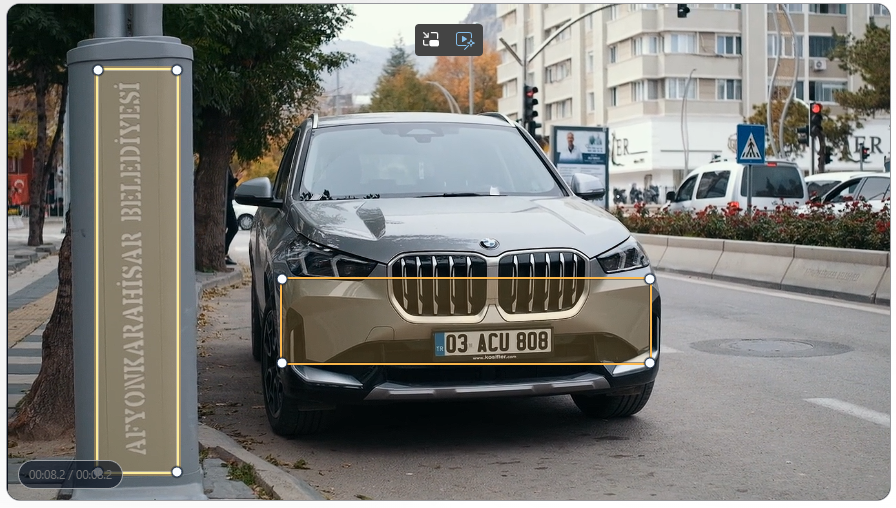
Anonymize readable plates, then review the export
Process the original clip before it reaches YouTube or a social platform, and check the result after compression.
Pre-publish checklist
Once a video is public, readable license plates can be copied, cropped, or reshared. The safer workflow is to anonymize the original clip before uploading it to YouTube, Instagram, TikTok, Facebook, or another publishing platform.
Process the video first with the license plate tool: /en/tools/blur-license-plates-videos/
Start with a free, watermarked preview of up to 15 seconds. Check the detected plates and adjust the effect or sensitivity before exporting. A watermark-free export of your chosen video range requires sign-in and paid video credits; see video credit pricing. Review the full downloaded export before sharing. If you upload the first export to another tool for a second pass, that new export uses video credits again.
Before you start
Use the clearest available source instead of a copy downloaded from social media. A higher-quality source gives the detector more detail to work with and makes manual review easier.
Keep an untouched copy of the original for your own records. Upload only the reviewed anonymized version.
Step-by-step workflow
- Open the FaceBlurify license plate video tool.
- Upload the original MP4 or MOV clip.
- Choose Blur, Mosaic, or Black box.
- Run the automatic license plate pass.
- Review the complete result, especially fast traffic and camera movement.
- Export the anonymized video.
- Play the exported file locally before uploading it anywhere.
- Publish that reviewed export to your chosen platform.
Choose an effect that survives compression
Social platforms usually recompress uploaded video. Fine details can shift, and a light blur may appear weaker after resizing or sharpening. Choose an effect that clearly obscures the plate in the exported file.
Black box provides the strongest visible masking. Mosaic or blur can fit the visual style better, but the final choice should remain unreadable at normal playback speed and when paused.
Frames that need extra attention
- Vehicles entering from the edges of the frame.
- Plates seen briefly during turns or overtaking.
- Night footage with glare from headlights.
- Reflections in mirrors, windows, or glossy surfaces.
- Small or distant vehicles.
- Motion-blurred frames and abrupt scene cuts.
If people are also identifiable, use the separate face or full-body tool before publishing. Follow the two-pass faces-and-plates workflow rather than assuming the plate pass also processes people.
After uploading
Watch the published version once more because platform compression can differ from the local export. If a plate becomes readable or a missed frame appears, remove or replace the upload with a corrected version.
FaceBlurify prepares the file; it does not upload to social platforms or monitor a published post.
Related guides
- Blur license plates in dashcam footage
- Blur faces and license plates in the same video
- Video anonymization best practices
- Keep original audio while blurring video
FAQ
Does FaceBlurify upload directly to YouTube or social media?
No. Download the processed result, review it, and upload it yourself.
Should I check the video again after publishing?
Yes. Platform compression can change how the masking looks, so review the published version as well as the local export.
Does automatic detection remove the need for review?
No. Moving, distant, partially hidden, or low-light plates can be difficult to detect. Always review the final video.