
Add AR Filters to Video Online with Face Tracking
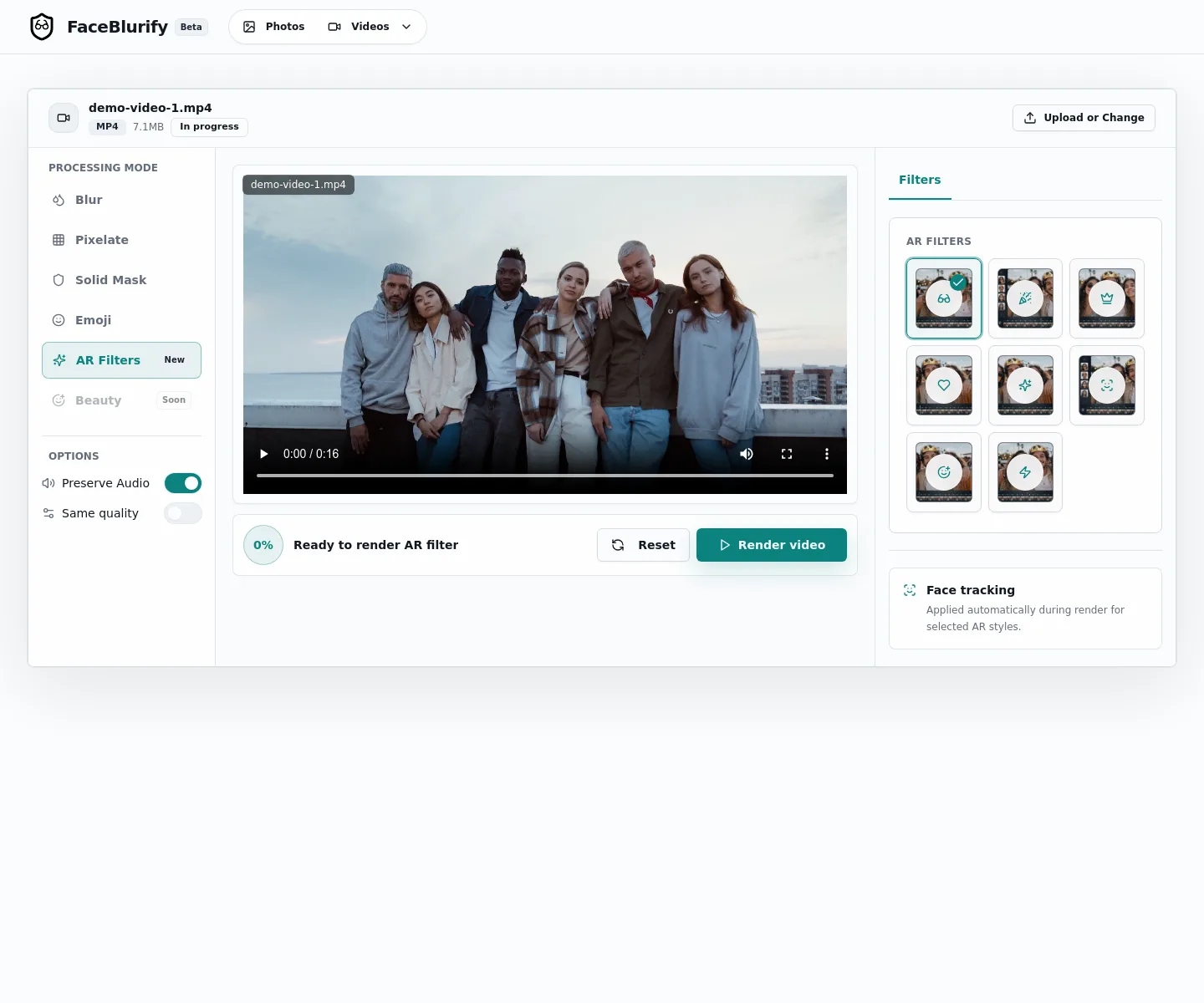
Add tracked AR filters to your video
Upload an MP4 or MOV, choose AR Filters, pick a face-tracked style, and render a creator-friendly result.
Best setup for this workflow
FaceBlurify now supports tracked AR filters for videos. Instead of only blurring or pixelating faces, you can add face-tracked overlays such as sunglasses, party glasses, crowns, masks, privacy avatars, mouth effects, and neon visors.
Use it here: /en/tools/add-ar-filters-to-video/
What AR filters do
AR filters detect faces in your video, track each face through the clip, and render a visual overlay on top of the face. This is useful when you want a creator-friendly result rather than a strict redaction.
Start by choosing AR Filters in the video workflow.
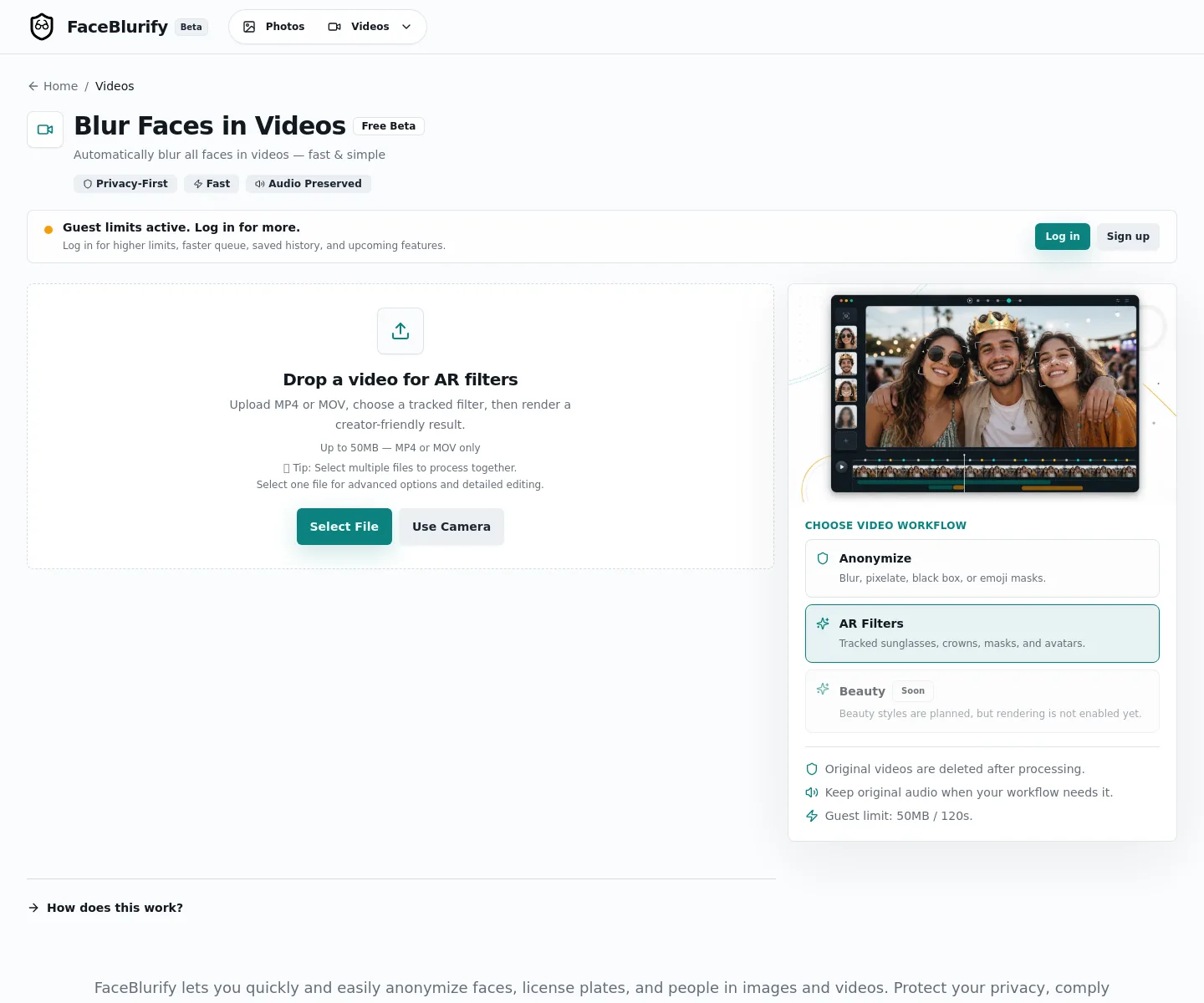
After uploading a video, FaceBlurify shows the AR style picker and the render controls.
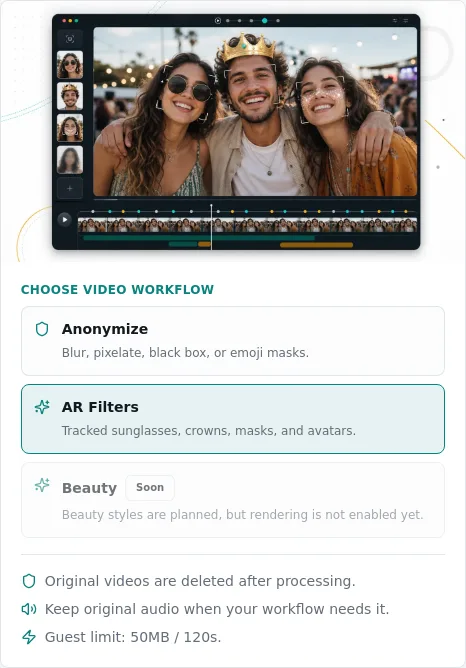
The workflow panel also explains what is happening: original videos are deleted after processing, audio can be preserved, and AR styles are applied with face tracking.
How to add AR filters to a video
- Open the AR filter tool: /en/tools/add-ar-filters-to-video/
- Choose AR Filters as the processing mode.
- Upload an MP4 or MOV file.
- Pick a filter style.
- Keep original audio enabled if the sound matters.
- Render the result and review the full video before sharing.
Guest uploads are designed for shorter clips: 50 MB and 120 seconds. Signed-in users can process larger clips, up to 100 MB and 600 seconds in the current production setup.
Available AR filter styles
| Style | Best fit |
|---|---|
| Sunglasses | Clean creator videos, casual edits, quick social clips |
| Party Glasses | Event recaps, fun group clips, informal posts |
| Gold Crown | Celebrations, creator intros, highlight moments |
| Heart Eyes | Reactions, playful edits, light social content |
| Sparkle Mask | Stylized face coverage with a more designed look |
| Privacy Avatar | Covering faces while keeping the clip visually expressive |
| Mouth Pop | Short-form reactions and expressive creator edits |
| Neon Visor | Tech, gaming, music, and nightlife-style clips |
AR filters vs anonymization effects
AR filters are different from privacy redaction. They can cover or decorate faces, but they should not replace strict anonymization when legal, school, medical, workplace, or compliance risk is involved.
| Goal | Better choice |
|---|---|
| Make a video more expressive | AR Filters |
| Hide faces for public sharing | Pixelized or Black Box |
| Keep one person visible and hide others | Choose faces individually |
| Hide people beyond their face | Full-body anonymization |
| Hide readable vehicle plates | License plate video tool |
For strict privacy, use the anonymization workflow instead: /en/tools/blur-faces-videos/
Review checklist before publishing
- Check side angles and fast head movement.
- Check crowded sections where faces overlap.
- Check the first and last seconds of the clip.
- Review whether original audio reveals names, addresses, or other identifiers.
- Use pixelized, black box, full-body, or license plate tools when the goal is privacy compliance.
When AR filters are useful
AR filters work well for creator clips, event videos, short lessons, team updates, social posts, and demo videos where the output should feel lighter than a full redaction.
If you want a privacy-forward style, start with Privacy Avatar. If you want a more playful edit, start with Sunglasses, Party Glasses, or Neon Visor.
Related guides
- Best practices for anonymizing videos
- Blur vs pixelate vs black box
- Keep original audio while blurring video
FAQ
Can I add AR filters to photos?
Not in this workflow. AR Filters are currently video-only in the face video tool.
Can I keep the original audio?
Yes. The video workflow can preserve the original audio when you render AR filters.
Are AR filters the same as face blurring?
No. AR filters add tracked overlays. Face blurring, pixelizing, and black boxes are better choices when the main goal is privacy protection.
Which AR filter is best for privacy?
Privacy Avatar is the strongest AR-style option, but strict privacy workflows should use pixelized, black box, selective blur, full-body anonymization, or license plate redaction.