
Best Practices for Anonymizing Videos Without Breaking Your Workflow
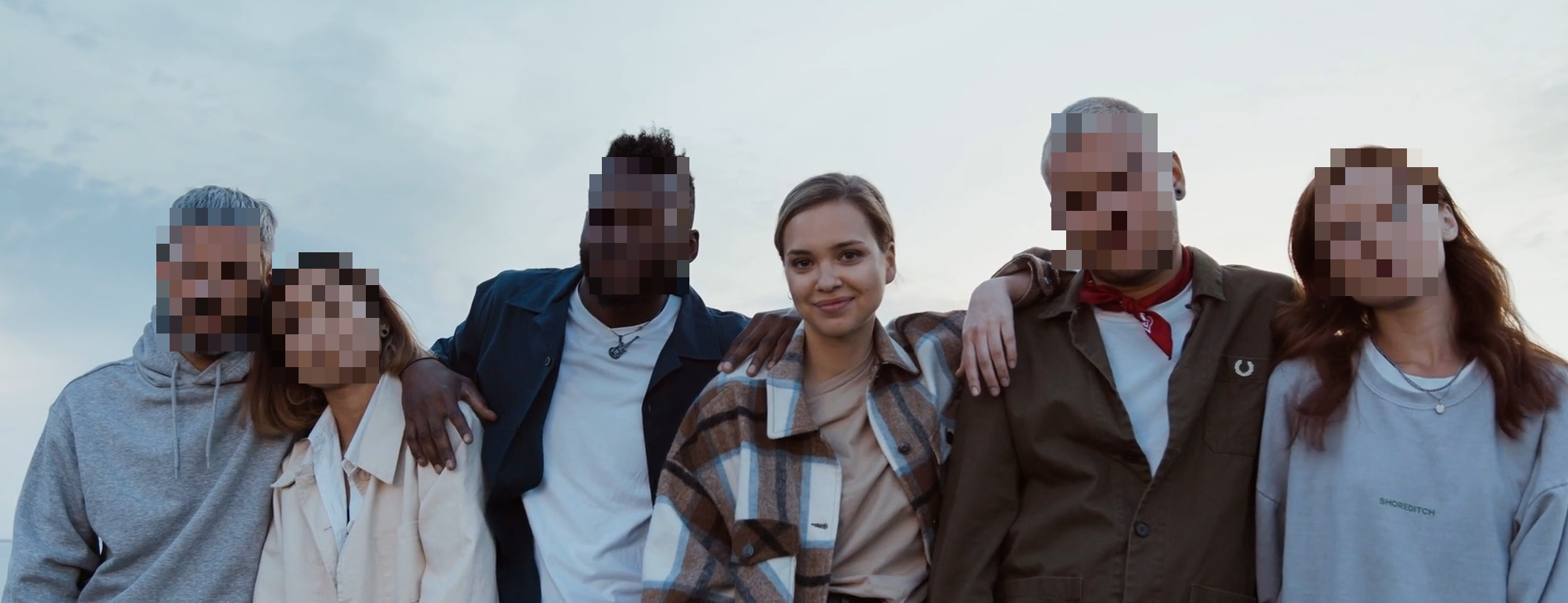
Video anonymization fails when teams treat it as a one-click step with no verification. Good results come from a repeatable process: pick the right mode, choose a strong effect, and review edge frames before release.
Start with the correct mode
Open the video tool: /en/tools/blur-faces-videos/
Then choose one of these workflows:
- Blur everyone: fastest path for broad privacy coverage.
- Choose faces individually: keep key people visible while blurring others.
- Zones only: add manual blur zones for plates, badges, logos, or screens.
Effect and intensity strategy
- Default to strong anonymization first.
- Review output on a full-size player.
- If readability suffers, reduce effect gradually.
For strict needs, use Pixelized High or Black Box. For softer style, use Blur with careful review.
Audio policy: preserve or remove
In many publishing cases, you need original audio. FaceBlurify supports keeping audio while anonymizing visuals.
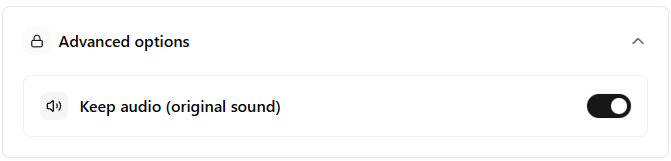
Use preserved audio when:
- Speech is required for context.
- You are publishing interviews or explainers.
- You need to keep narration timing unchanged.
Review checklist before final export
- Check intro and outro frames.
- Check scene cuts for missed detections.
- Check crowded moments and background faces.
- Check overlays, reflections, and monitor screens.
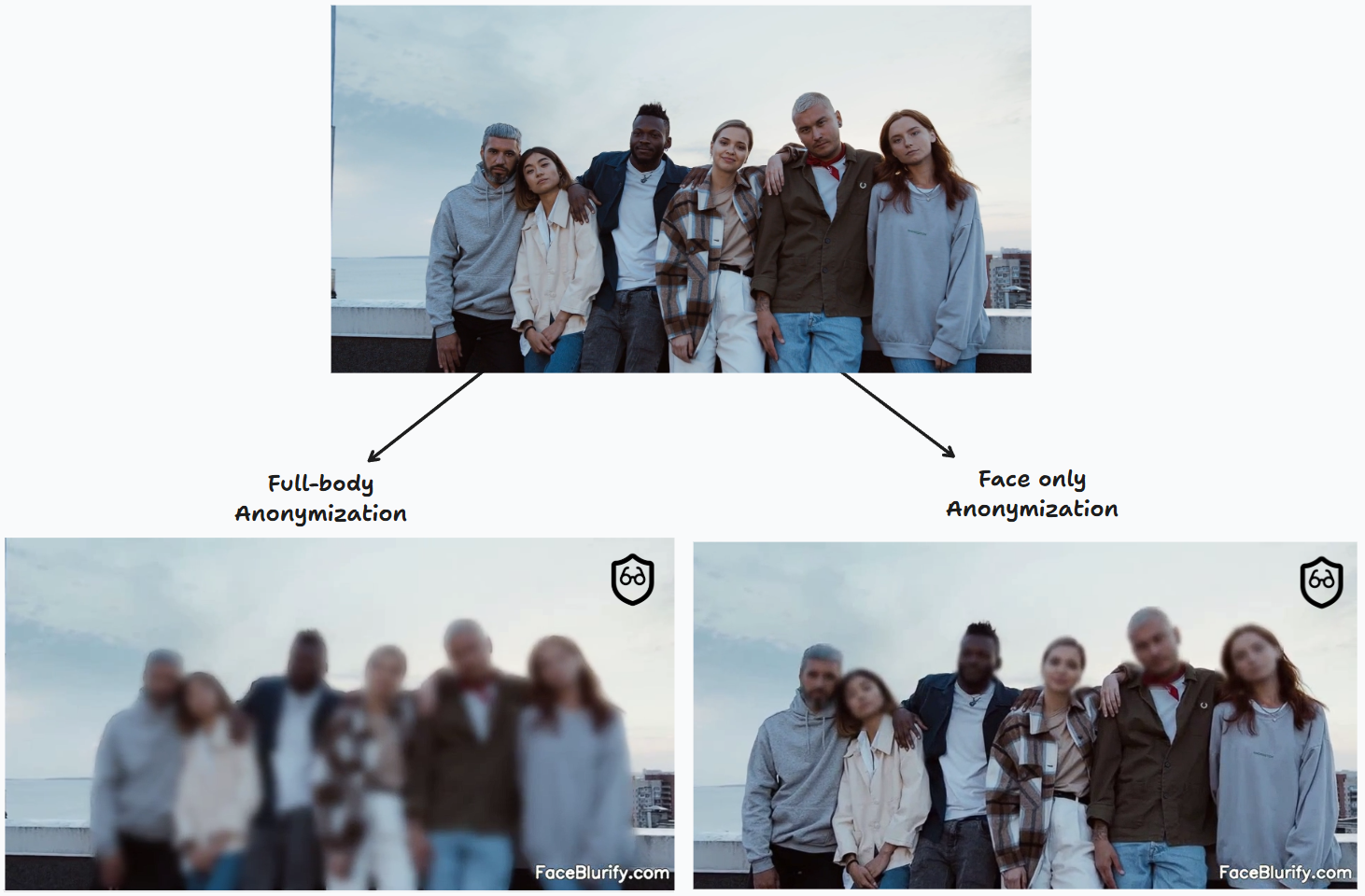
When full-body anonymization is better
If identity could still be inferred from posture, clothing, or silhouette, use full-body mode: /en/tools/blur-fullbody-videos/
Related guides
- Blur everyone except one person (selective)
- How identity gallery works
- Face detection missed someone? fixes
FAQ
Is one pass enough for compliance-sensitive footage?
Usually no. Run a focused review pass before publishing.
Can I anonymize only part of a video?
Yes. Use timeline/trim and selective editing workflows.
What if detection misses some faces?
Re-run analysis with adjusted settings and manually review hotspots.
Can I combine selective and manual zones?
Yes. This is often the best option for real-world footage.