
Keep original audio while blurring faces in video
Anonymize interviews, explainers, and creator clips without muting the speech or ambient sound that gives the video context.
Best for
Use this workflow when you need strong privacy controls without leaving the browser tab to figure out the next step.
Interviews
Keep the speaker understandable while faces stay anonymized.
Creator clips
Preserve narration, reactions, and room tone for social publishing.
Training videos
Protect identities without losing spoken instructions.
Step-by-step workflow
Upload the clip
Start in the video tool and load your MP4 or MOV file.
Enable Keep audio
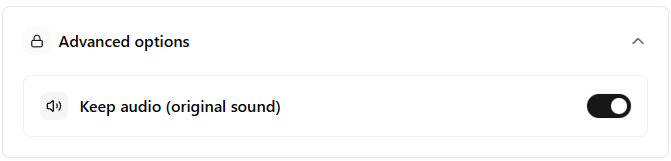
Open Advanced options and leave original sound turned on before you process.
Choose the right workflow
Use blur-all for the fastest pass or selective mode when one identity should stay visible.
Review the export
Check that speech, lip-sync, and playback all still feel right before publishing.
- Audio stays in the export when Keep audio is enabled.
- You can switch between blur-all and selective review depending on the clip.
- Trim a short segment first to confirm sync before processing a longer upload.
Who this is for
- Teams publishing interviews or customer stories
- Creators who want privacy edits without losing narration
- Editors reviewing compliance-sensitive clips with spoken context
Try this workflow in FaceBlurify
Open the tool, follow the steps above, and use the related guide if you want a more detailed walkthrough.
FAQ
Short answers to the questions people usually ask before they try the workflow.
Can I preserve audio in selective mode too?
Yes. Audio preservation is separate from the face-selection workflow.
Should I still review the audio manually?
Yes. Spoken names, addresses, and identifiers can still matter even when the visuals are anonymized.
Does this work for wide scenes?
Yes. For wide scenes or CCTV-style footage, switch to full-body mode when faces are too small to be reliable.
Related workflows
Keep the next click close to the task the visitor is already trying to complete.