
Blur everyone except you in a video
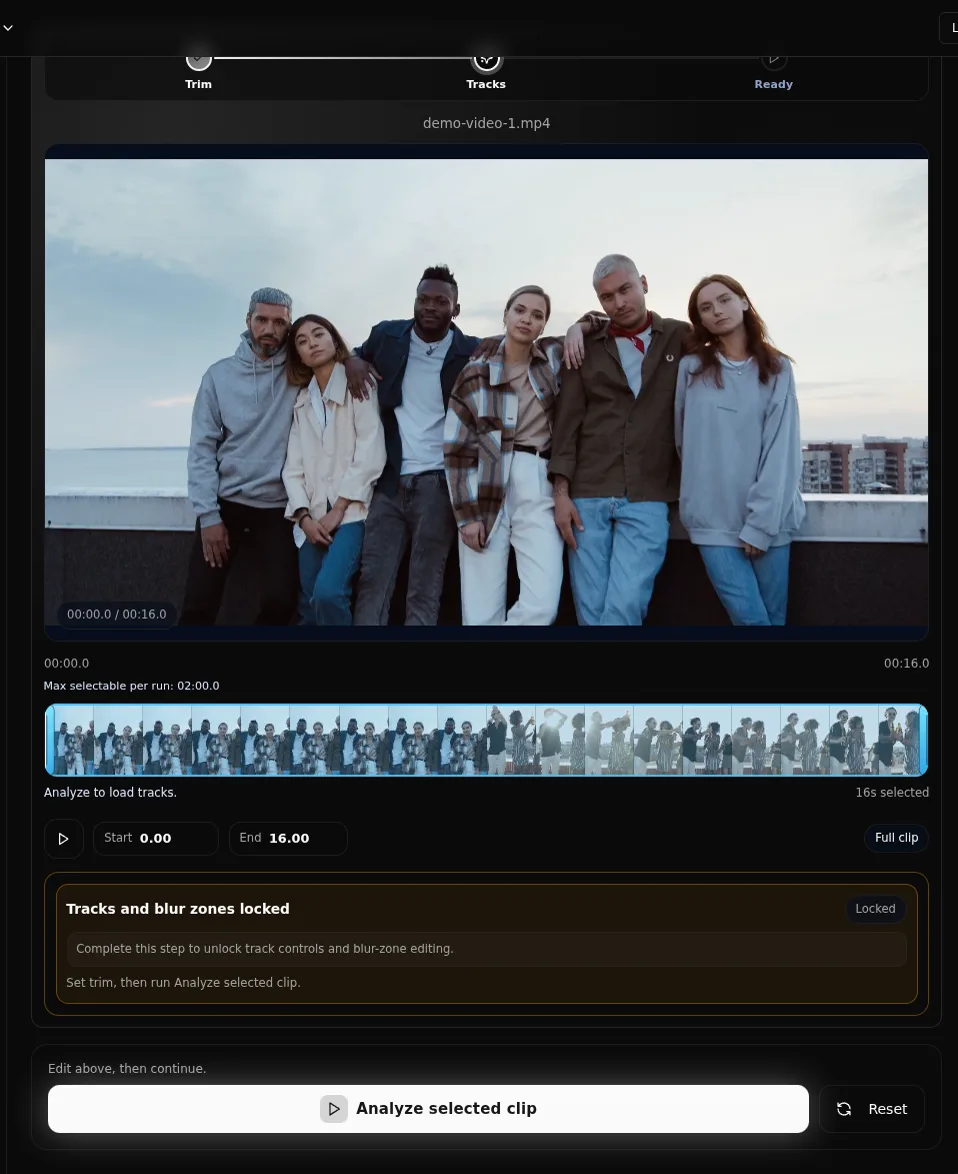
Analyze the clip, review grouped identities, and keep the presenter visible while everyone else stays anonymized.
Best for
Use this workflow when you need strong privacy controls without leaving the browser tab to figure out the next step.
Creator videos
Keep the presenter visible while hiding people in the background.
Interview footage
Leave the speaker clear and anonymize guests or bystanders.
Training clips
Protect participants while the instructor stays recognizable.
Step-by-step workflow
Upload the video
Start in the face-blur video tool with your MP4 or MOV file.
Choose faces individually
Switch to the selective workflow before analysis so identities can be grouped.
Review the gallery
Keep your identity visible and set everyone else to blur.
Apply and verify
Render the clip, then review scene changes and crossings before download.
- Identity gallery lets you review people before final rendering.
- Trim the clip first to speed up analysis and reduce review time.
- Keep audio can stay on when spoken context still matters.
Who this is for
- Creators filming in public places
- Teams publishing interview footage with guests
- Anyone who needs person-by-person control instead of blur-all
Try this workflow in FaceBlurify
Open the tool, follow the steps above, and use the related guide if you want a more detailed walkthrough.
FAQ
Short answers to the questions people usually ask before they try the workflow.
Can I keep more than one person visible?
Yes. Selective mode supports multiple keep decisions before you export.
Does this work on only part of a video?
Yes. Trim to the relevant section first, then analyze the selected range.
When should I use full-body mode instead?
Use full-body mode for wide scenes, CCTV, or clips where identity can still be inferred from clothing or posture.
Related workflows
Keep the next click close to the task the visitor is already trying to complete.